

6.52. How to Configure Nav Core on SambaPOS
In this document it will be explained how to configure Nav Core Function on SambaPOS.
How It Works;
IMPORTANT NOTES:
Note-1: To use SambaPOS Nav Core Function, you must upgrade your SambaPOS version to at least 5.7.28
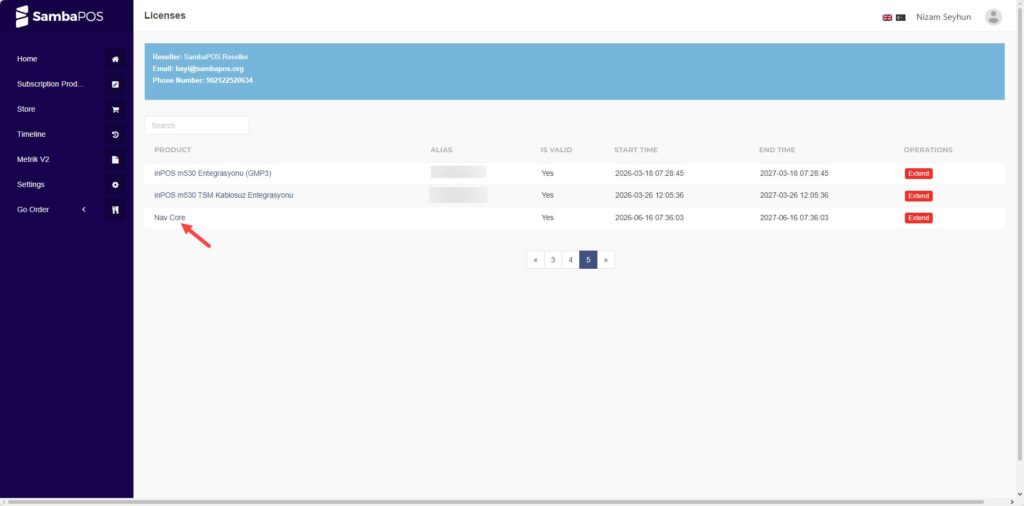
Note-2: To use SambaPOS Nav Core Function, you must have SambaPOS Nav Core License and SambaPOS V5 Pro license in the same cp.sambapos.com account.
1. Getting API Key
You need to obtain an API key from either your Google or TomTom account (billing/quotas remain under your control).
1.1. Getting Google Maps API Key
You can check the source below to see how to get Google Maps API Key;
1.2. Getting TomTom API Key
You can check the source below to see how to get TomTom API Key;
2. Settings To Be Done on SambaPOS
2.1. Editing Field Type of Address Custom Field of Customers Entity Type
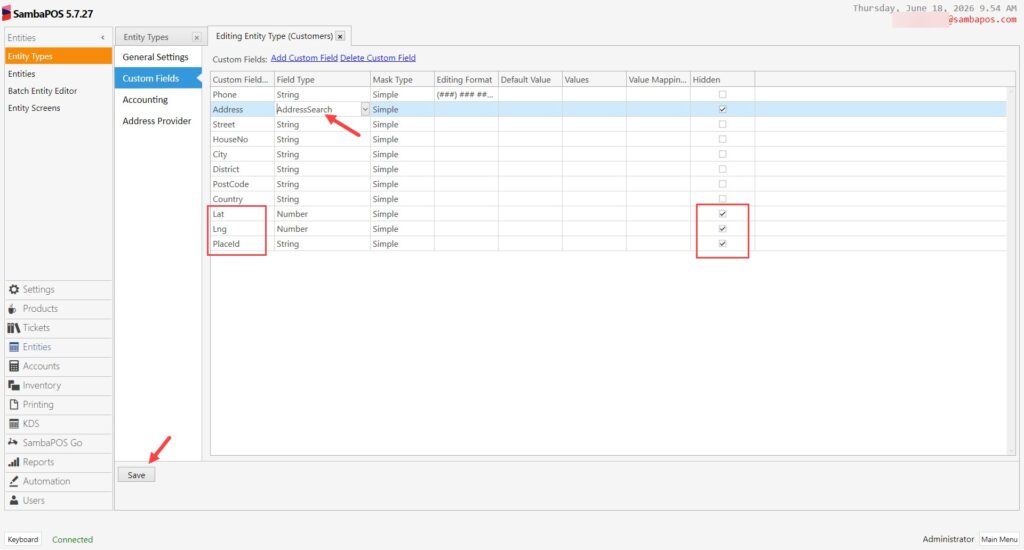
Main Menu > Manage > Entities > Entity Types > Customers > Custom Fields > Address > Select Field Type;
AddressSearch: For free-text address/street searching.
PostcodeLookup: For postcode + house number in a single box (e.g., 1011AB 25).
Upon saving, the following standard sub-fields are automatically created (and their names are locked): Street, HouseNo, City, District, PostCode, Country (along with hidden Lat, Lng, PlaceId fields).
Note-1: These sub-field names cannot be renamed or deleted; they are required for the auto-fill functionality to work correctly.
Note-2: If you don’t want to display some of the fields such as Lang-Lat-PlaceId etc, you can hide them by clicking the check box under the Hidden Column.
Note-3: If you want to use those hidden fields in the printing template here are the codes for them; Lat: {ENTITY DATA:Lat} | Lng: {ENTITY DATA:Lng} |PlaceId: {ENTITY DATA:PlaceId}
Note-4: If you want to use other auto created custom fields you can use them as well.
2.3. Selecting Address Provider
Main Menu > Manage > Entities > Entity Types > Customers > Custom Fields > Address Provider.
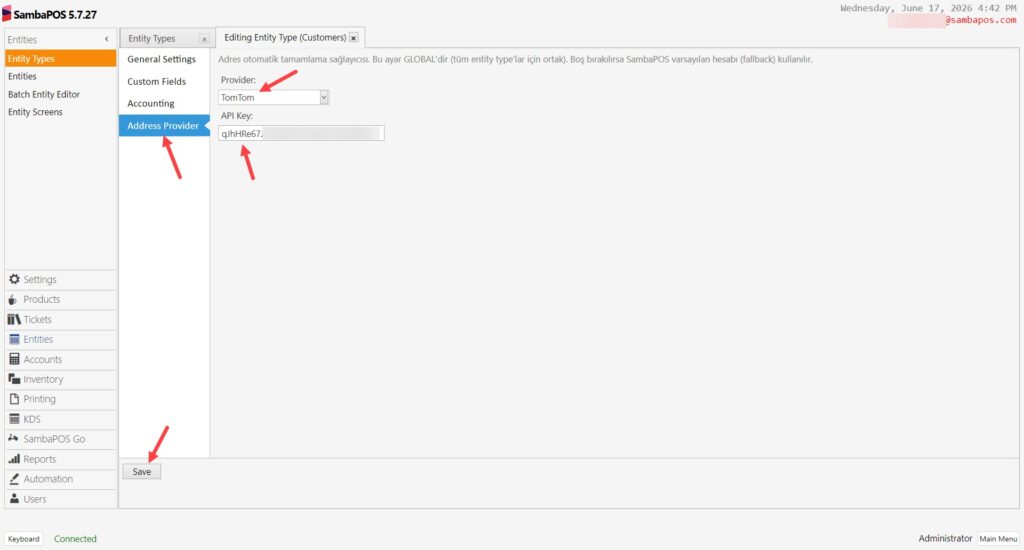
Provider: In here select your provider.
API Key: Copy and paste your API Key to here.
After completing necessary editings, click on Save button.