
8.19. How to Configure SambaPOS KDS V2?
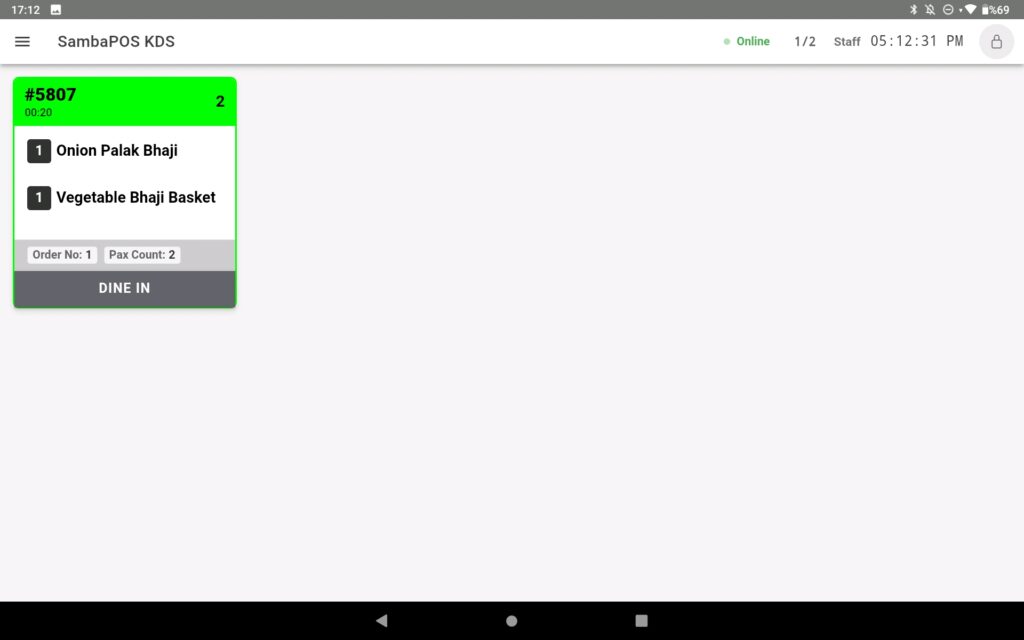
In this document it will be explained how to configure SambaPOS KDS V2.
System Requirements;
1. You need to have SambaPOS KDS License in the same account that you have SambaPOS V5 Pro License.
2. It is necessary to purchase SambaPOS KDS License as much as device counts to be used.
3. SambaPOS KDS V2 works only Tablet Devices.
4. You need to have minimum SambaPOS 5.7.26 version.
5. Mobile Device Features
For Android Devices;
– Google Play Store must be installed on the mobile device.
– All of the Google Services must be installed on the mobile device.
– Android version must be 7.0 or higher.
– Minimum 2 GB of RAM
For iOS Devices;
– iOS version must be 11.0 or higher.
Where to Download;
You can download SambaPOS KDS application from Google Play Store and Appstore.
You can purchase SambaPOS KDS License from cp.sambapos.com account’s Store Section.
1. Windows Server Settings
1.1. Server Features Server Operating System:
Windows 10 or above operating system and the latest version of Microsoft SQL Server
Server Hardware:
Minimum Intel i5 10th Gen CPU, 8 GB of Ram, 120 GB SSD Harddisk or higher
1.2. Database Features Latest version of Microsoft SQL Express Server Download Link Setup Document Link
1.3. Network Settings SambaPOS Server and Mobile Client must be in the same IP group. Server:
Go to Control Panel > Network and Sharing Center > Change Adapter Settings > Local Area Connection > Internet Protocol Version 4 (TCP/IPv4) > Properties > Write a static IP.
1.4. Windows Firewall Settings Please deactivate all third party internet security and firewall services.
Note: If you don’t have MSSQL database, please visit the link to configure settings https://kb.sambapos.com/2-1-3-sql-express-server-setup/?lang=en
SambaPOS KDS V2 doesn’t work without MSSQL database.
– Please deactivate all third party internet security services and Windows Firewall.
Control Panel > System and Security > Windows Firewall > Turn Windows Firewall on or off > Turn off Windows Firewall for Private Network Settings and Public Network Settings
1.5. MSSQL TCP/IP Ports Go to SQL Server Configuration Manager and “Enable” TCP/IP Sharing to connect MSSQL Database from clients.
– Right Click My Computer > Manage > Services and Applications > SQL Server Configuration Manager > SQL Server Network Configuration > Protocol For MSSQLSERVER > TCPIP > Enabled
1.6. Message Server Settings
1.6.1. SambaPOS Message Server Controls and Settings
SambaPOS KDS V2 uses SambaPOS Message Server for communication.
You might be using SambaPOS Message Server with default settings.
If you don’t use Message Server or if using it with different settings than default in this case you have to configure necessary settings by following below explanations.
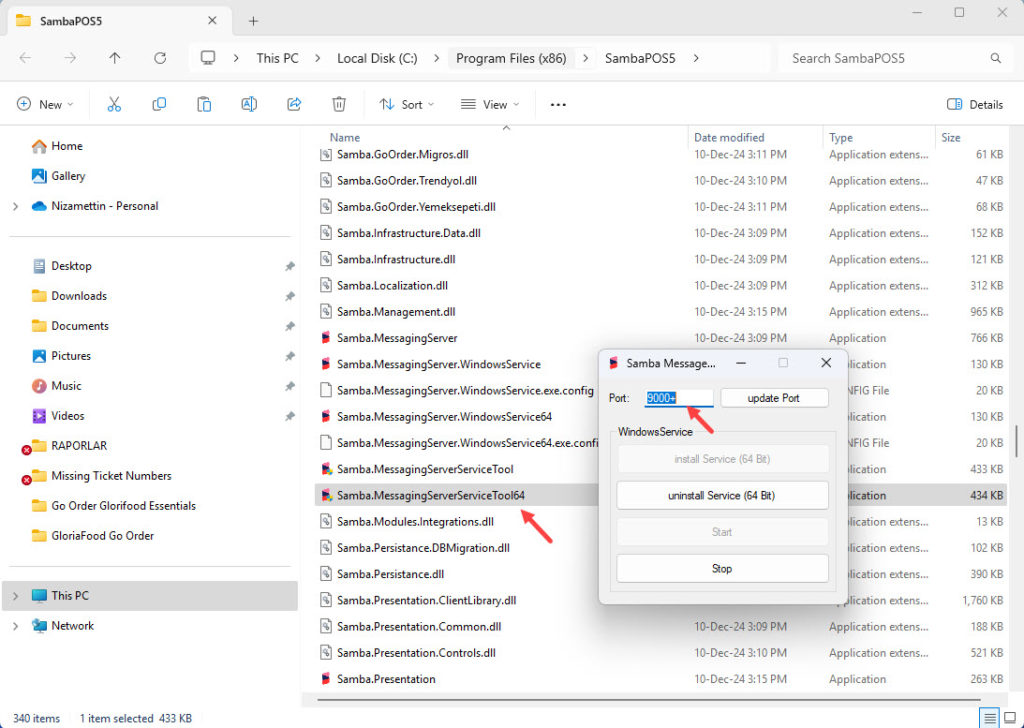
To configure Message Server Settings, execute “Samba.MessagingServerServiceTool.exe” file which is located in the directory that SambaPOS is installed.
Port: 9000+
Note: Port has to be 9000+ By checking image below you can see how it is supposed to be simply configured and also notice that it has to be on Start status.
1.6.2. SambaPOS Manage Message Server Settings
Message Server settings are supposed to be configured also in SambaPOS by following the settings above.
Go to Manage > Settings > Local Settings > Message Server, in here perform the mentioned settings and click on SAVE button.
Message Server Name: http://main_computer_name (Name of SambaPOS V5 installed main computer) or http://123.123.123.123 (IP address of SambaPOS V5 installed computer)
Message Server Port: 9000 Auto Start Message Client: [X] (Has to be selected)
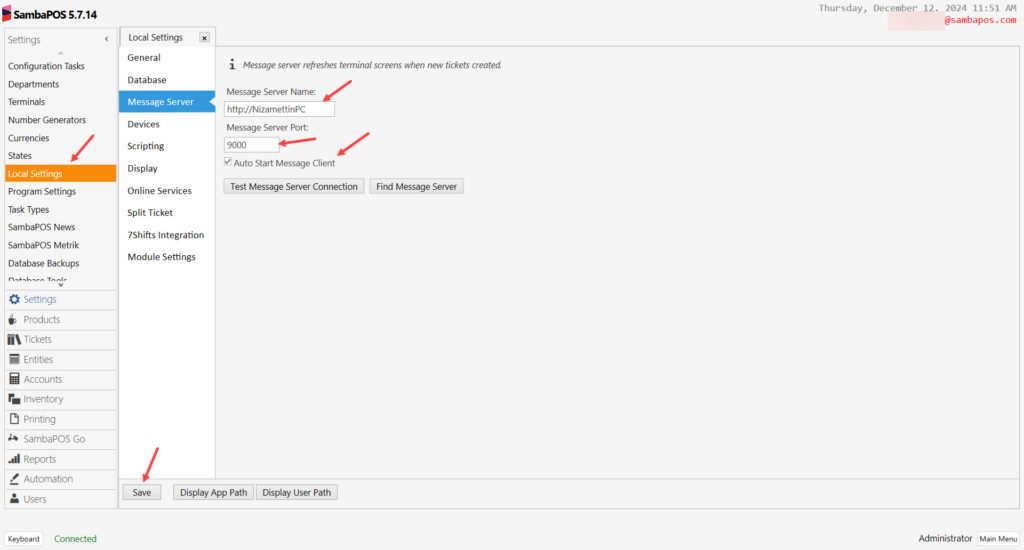
After completing necessary editings, click on Save buton.
2. About SambaPOS KDS License
2.1. SambaPOS KDS License
If you don’t have SambaPOS KDS License, you have to purchase it from SambaPOS CP website.
Important Note:
Your SambaPOS KDS License and SambaPOS V5 Pro license have to be defined under the same email address on our CP website.
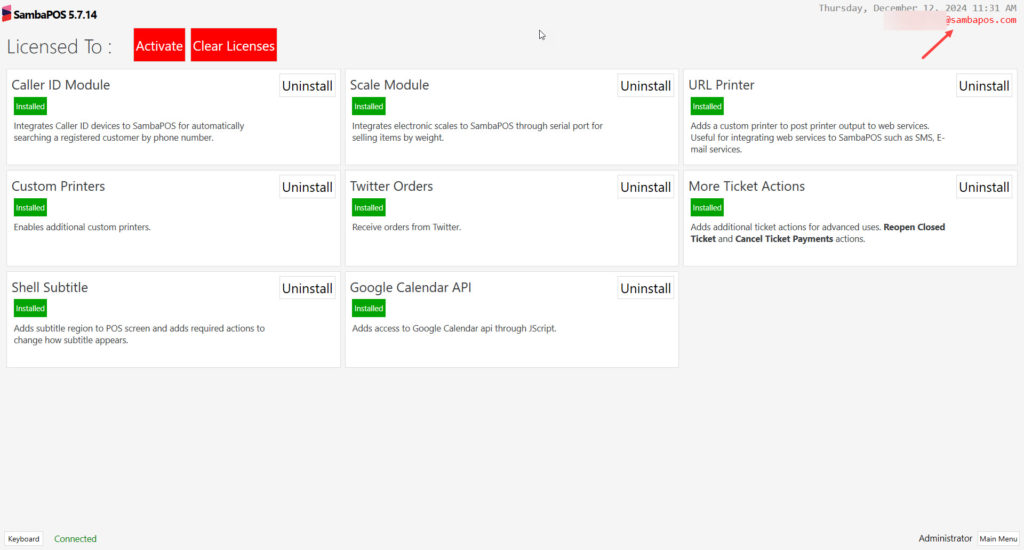
2.2. SambaPOS License Activation Check Check the SambaPOS Main License status.
3. Settings That Should Be Done on SambaPOS
3.1. Creating Kitchen State
You need to create a new Status on SambaPOS and use the same Status Name for Status Screen on the kdsadmin.sambapos.com;
Main Menu > Manage > Settings > States > Add State > Here, add a new state by clicking on Add State button.
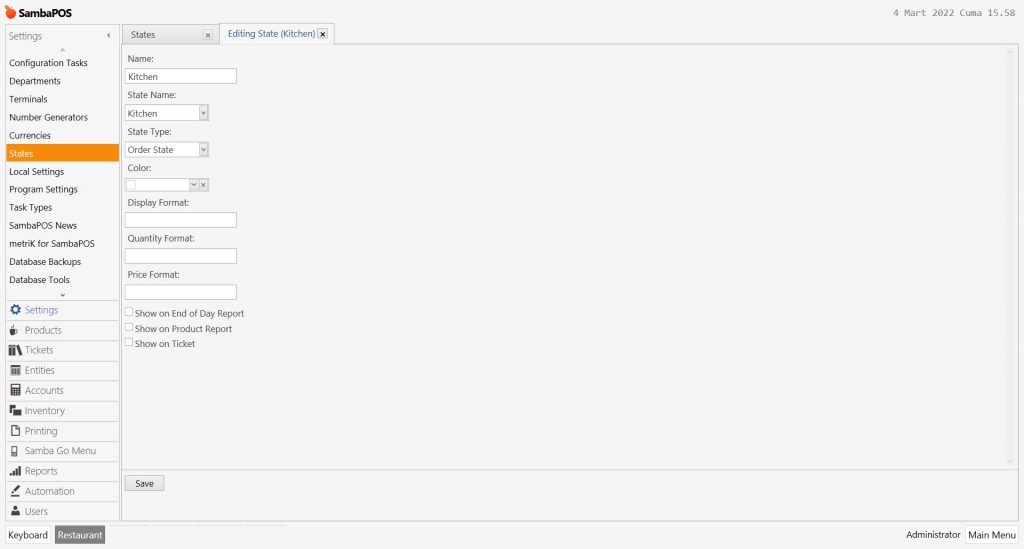
Name: Kitchen
State Name: Kitchen
State Type: Order State
After completing necessary editings, click on Save button.
3.2. Creating User
Main Menu > Manage > Users > Users List > Here, click on Add User.
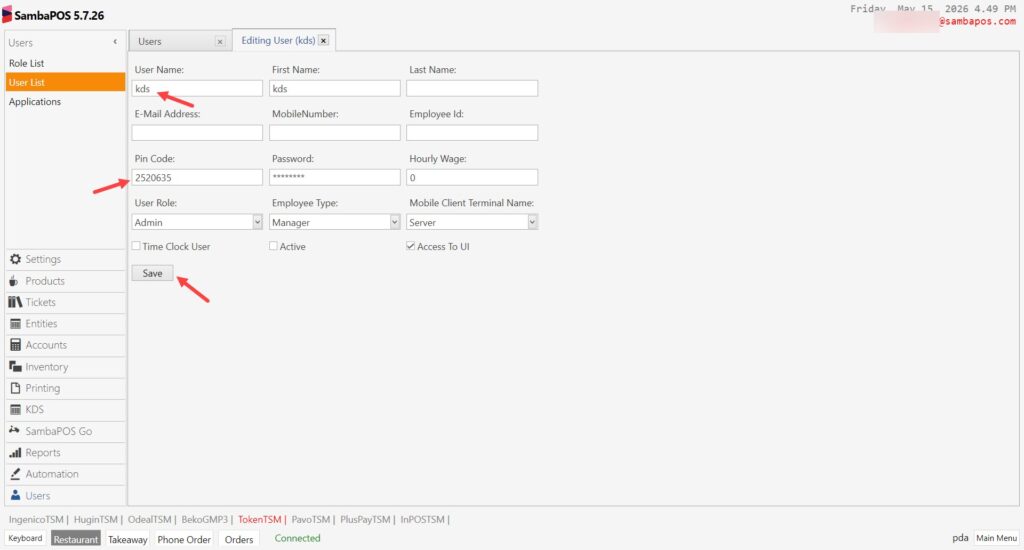
User Name: kds
Pin Code: 2520635 (You can use any pin code)
Password: 2520635 (You can use any pin code)
Role: Admin
After completing necessary editings, click on Save button.
3.3. Creating Application
Main Menu > Manage > Users > Applications > Here, click on Add Application.
General Settins Section;
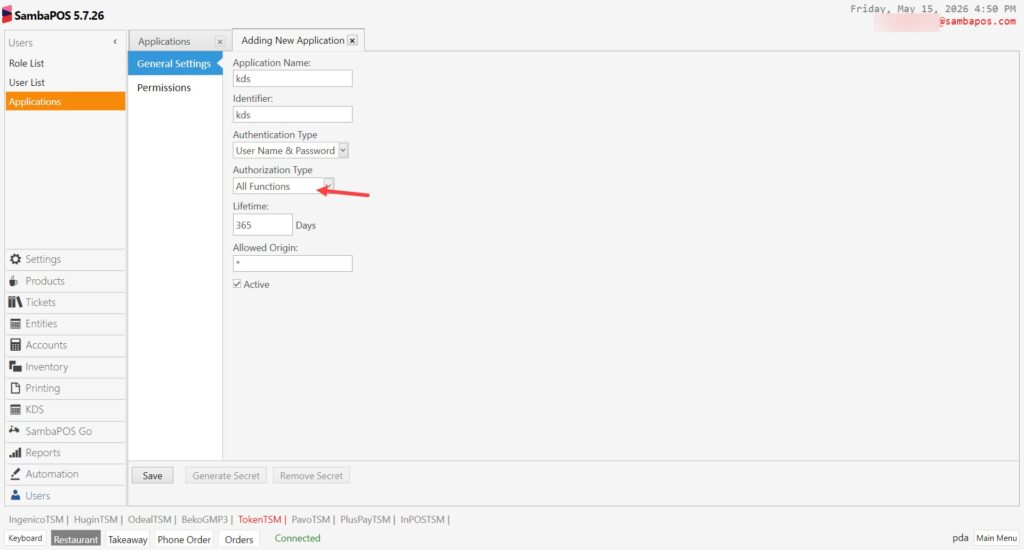
Application Name: kds
Identifier: kds
Authentication Type: User Name & Password
Authorization Type: All Functions
Lifetime: 365
Allowed Origin: *
Active: Must be selected
Permissions Section;
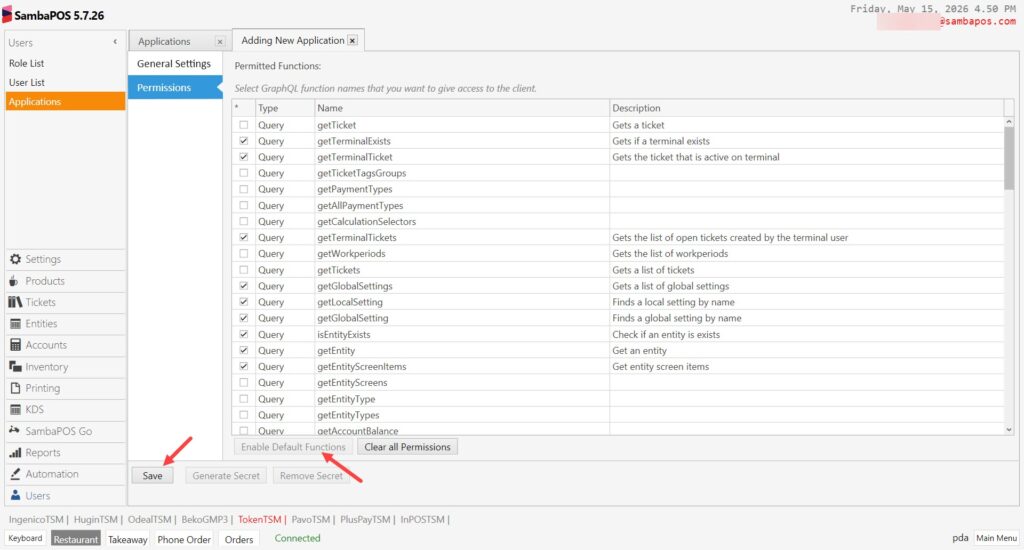
Here click on Anbale Default Functions button.
After creating kds application you need to restart SambaPOS Messaging Server.
After completing necessary editings, click on Save button.
3.4. Sending Menu to SambaPOS KDS
Main Menu > Manage > Settings > Program Settings > SambaPOS KDS;
In here, you need to type the name of Menu that you want to send to SambaPOS KDS and click on Send Menu to SambaPOS KDS button.
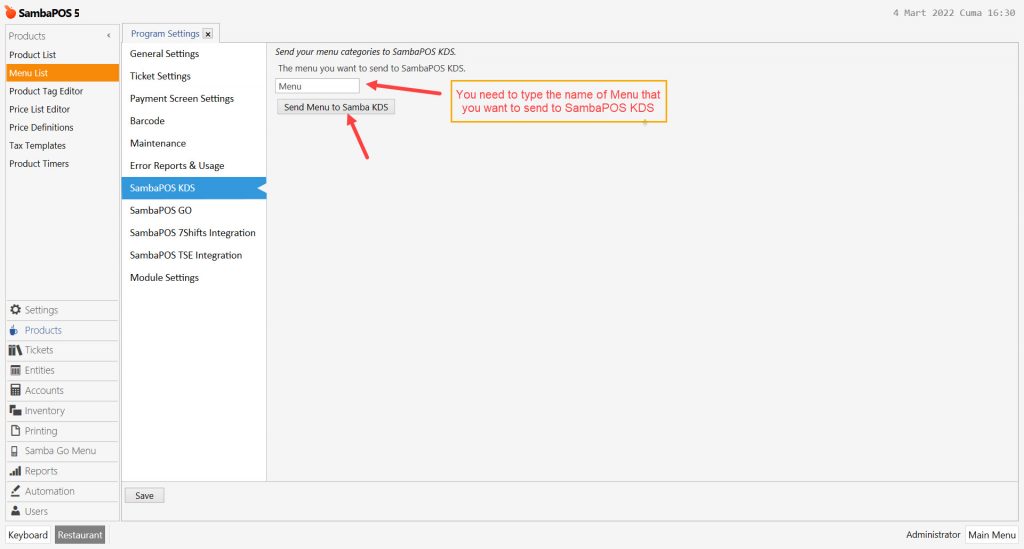
After completing necessary editings, click on Save button.
3.5 Checking the Server IP Address
In order to find your Main Computer’s Ip Address;
– Into search field of your computer type CMD and click on Enter button;
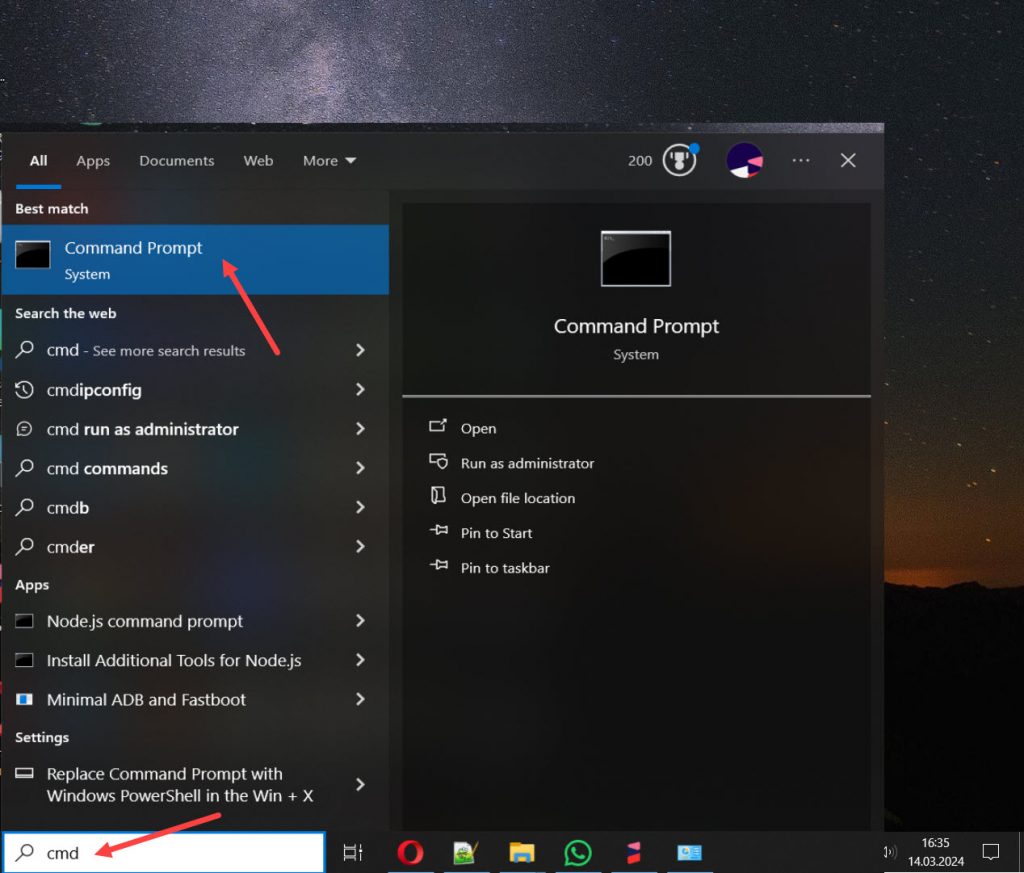
– In the CMD screen type ipconfig and click on Enter button;
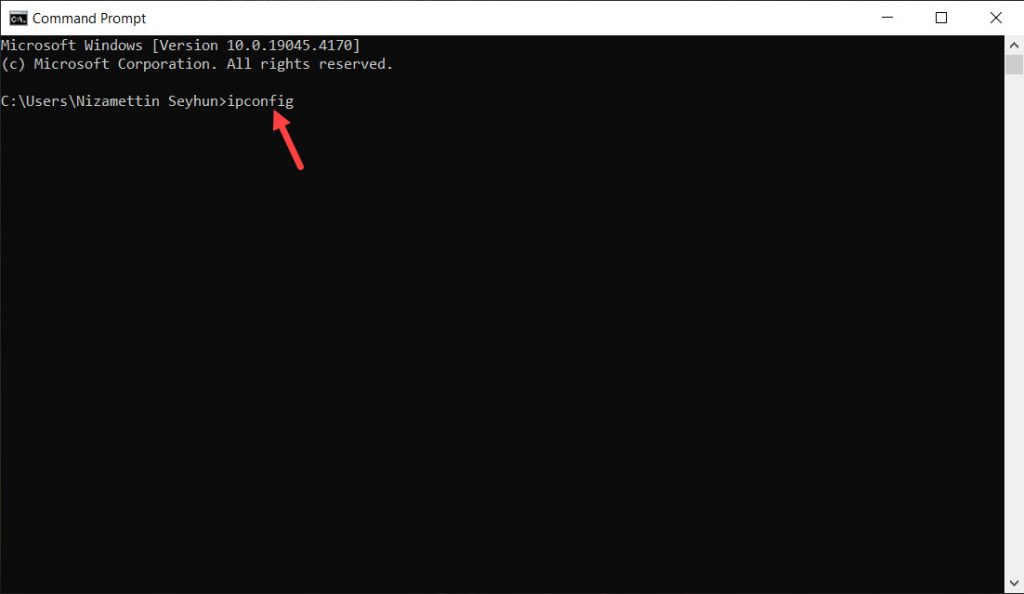
– In the CMD Screen IPv4 Address line refers to your computer’s IP Address;
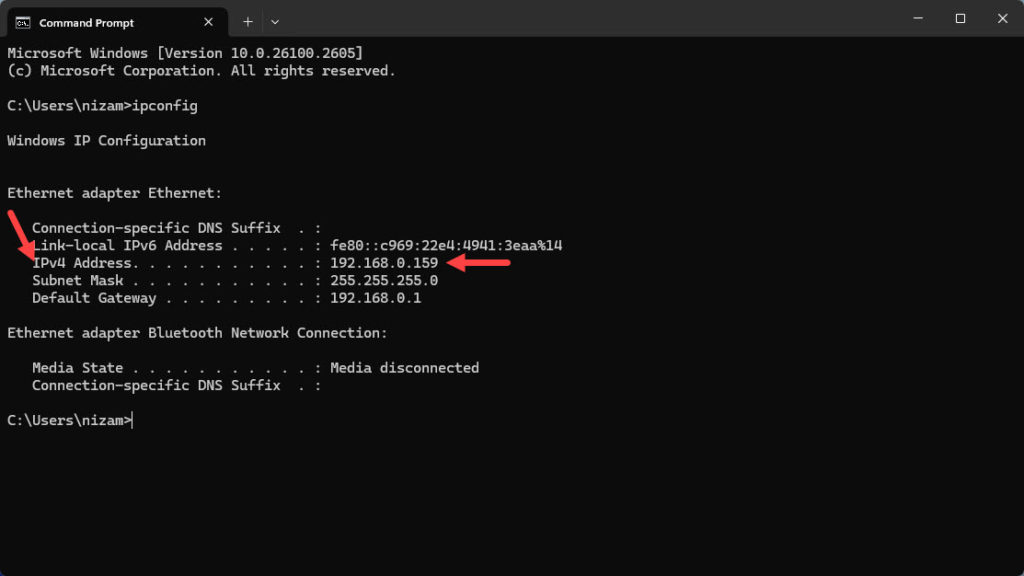
3.6. KDS Settings Screen
Main Menu > Manage > KDS > KDS Settings;
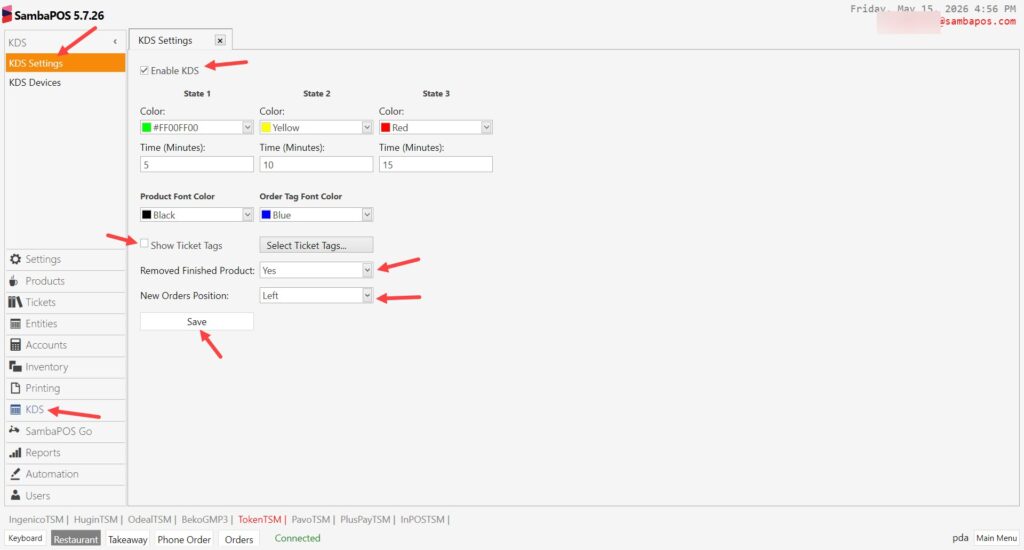
Enable KDS: This box must be selected.
State 1: This is the color of the ticket on the KDS screen will take until 5 minutes have passed since the order arrived.
State 2: This is the color of the ticket on the KDS screen will take after 10 minutes have passed since the order arrived.
State 3: This is the color of the ticket on the KDS screen will take after 15 minutes have passed since the order arrived.
You can customize those preiods accordingly.
Show Ticket Tag: If you want your ticket tags to appear on the KDS screen, check this box and select the relevant tags from the Select Ticket Tag section.
Remove Finished Products: If you want to remove completed receipts from the screen, select Yes here.
New Orders Position: You can choose here whether newly entered orders appear on the right or left side of the KDS Tablet screen.
After completing necessary editings, click on Save button.
3.7. KDS Devices Screen
Main Menu > Manage > KDS > KDS Devices;
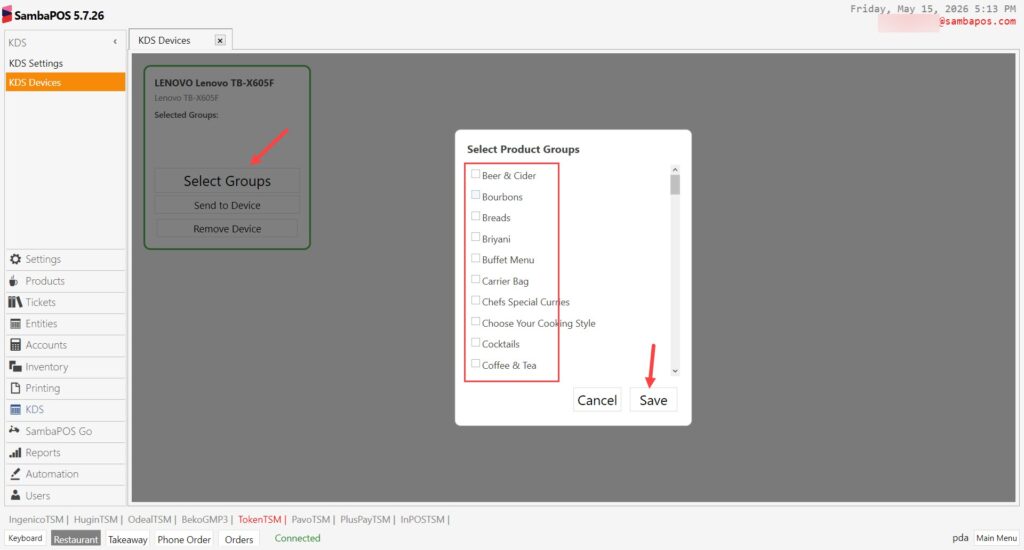
Select Groups: In this section, you can select the product groups you want to receive orders for on your KDS Tablet.
After completing necessary editings, click on Save button.
3.8. KDS Tablet Login Screen
Connect the tablet you will use with SambaPOS KDS V2 to the same network as your Host PC and open the KDS V2 application.
In the Manual Server Entry field, enter your Host PC’s IP address, then add a colon (:), and enter your SambaPOS Message Server Port number (the default port number is 9000), and click OK.
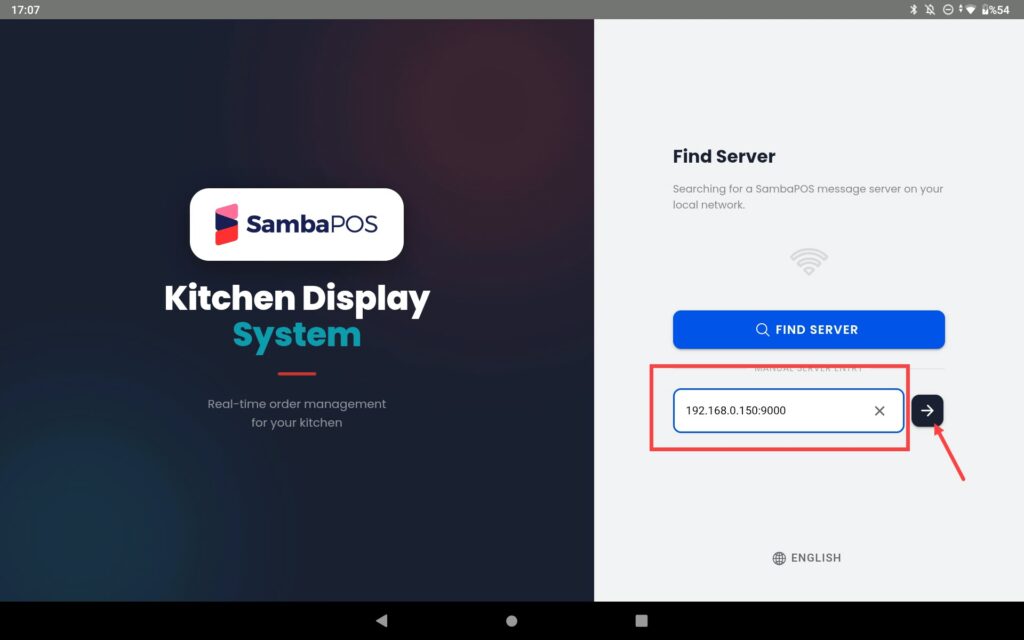
Then you can log in with your SambaPOS username and password;